|
Setting up a new Outlook Express email account
To setup a new Outlook Express
email account to automatically send and receive emails, perform the
following.
Open Outlook Express and in
the tool bar at the top click on "Tools" and then "Accounts".
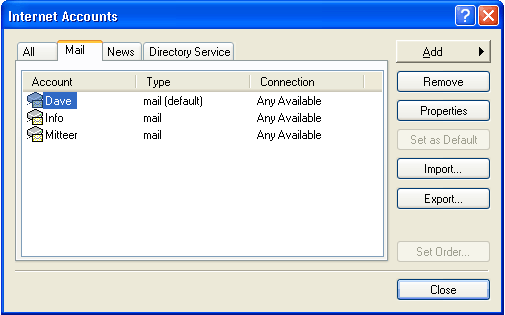
This will open a
small popup window which is shown above. Make sure the "Mail Tab" at the top is
selected. The window will list all your existent email accounts if you have
any already setup.
I have 3 shown above. If this is the first time setting up an account then the box will be empty
and you will have to click the "Add" (top right) and then "Mail". This will
start a wizard which will set up your email account. Note: you can have multiple email accounts from different email accounts set up so
that a single send/receive will retrieve emails from all accounts and put them in
your Inbox folder.
The first thing the wizard will ask
for is a "Display name".
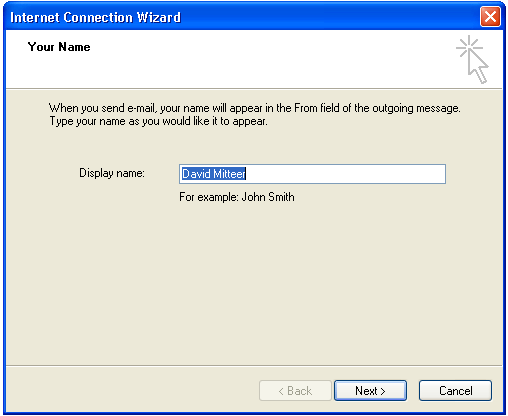
What
you enter into this box is what the person on the receiving end will as who
the email is from. If you enter Santa Claus, then the email will be seen as
from Santa
Claus on the receiving end. I recommend using your full name so the recipient will know who the
email is from. I get emails from Susan's with no last name and don't know
which Susan sent it.....
Click "Next"
Next the wizard will ask for
your "E-mail address". Enter in your full email address.
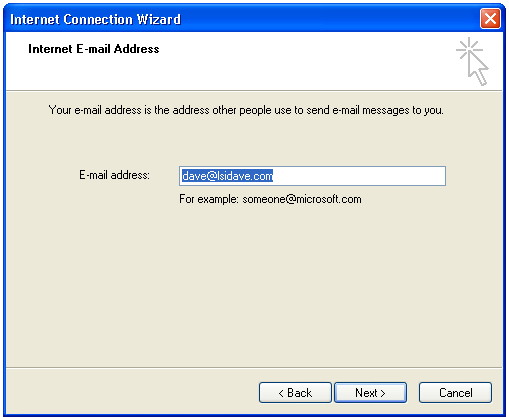
Click "Next"
Next select a
"POP3" account type in the top pull down if not already selected.
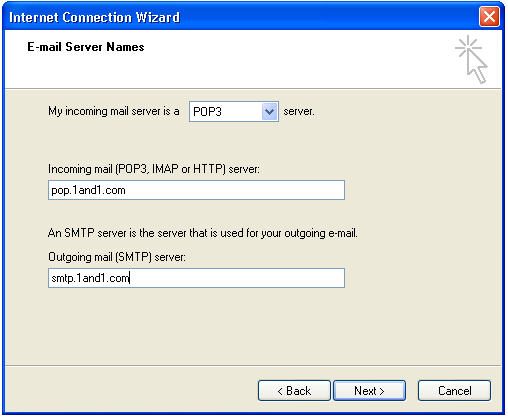
Enter your POP Server from
the list below...
Road
Runner email accounts enter pop-server.san.rr.com
COX email
accounts enter pop.west.cox.net
LSI email
accounts enter pop.1and1.com
Click next
Enter your SMTP Server from
the list below...
Road
Runner email accounts enter smtp-server.san.rr.com
COX email
accounts enter smtp.west.cox.net
LSI email
accounts enter smtp.1and1.com
Click "Next"
Next the wizard will ask for
your "Account name" and "Password".
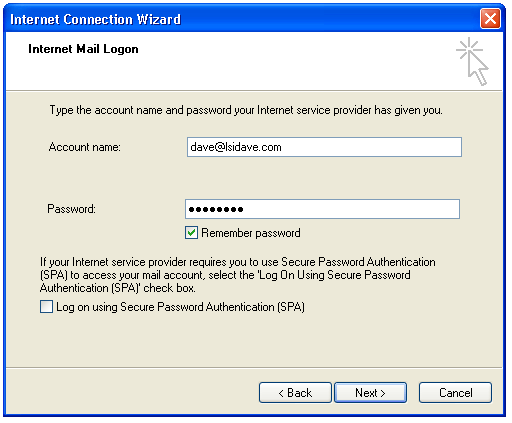
The account name is your email address.
Road Runner or COX accounts enter in only the first part of your email
address and not the @san.rr.com portion.
For LSI email accounts you must
enter in your full email address.
The password is one which was setup
for your email account on the server and has nothing to do with your PC's
passwords. If you do not know it then call and we can track it down.
858.695.1177. Enter in your password. By checking the box which says
remember password, Outlook Express will automatically transmit your account
information and password each time it performs a send/receive. Otherwise you
will have to enter it in each time manually. I recommend checking the box.
Click next and finish
Last step is to reopen the
accounts by clicking on Tools and then Accounts. In the window double click
on the email account you just created. Then click on the Servers tab at the
top. Make sure the "My server requires authentication" box is checked at the
bottom as shown below.
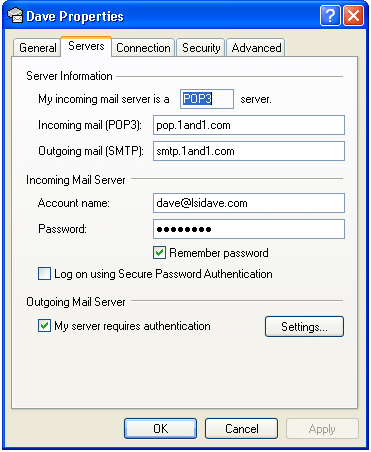
Click OK and you are done.
Happy emailing!
|